Two-Factor Authentication
After creating your profile, you’ll set up Two-Factor Authentication (2FA) to secure your account.
Why Use 2FA?
- Enhanced Security - Protects against unauthorized access
- Account Protection - Even if your password is compromised, your account remains secure
- Compliance - Meets security requirements for sensitive drone operations
Setting Up 2FA
Requirements
You’ll need an authenticator app installed on your mobile device:
- Google Authenticator (recommended)
- Microsoft Authenticator
- Authy
- 1Password
- Bitwarden
- Any TOTP-compatible app
Setup Screen
After profile setup, you’ll see the 2FA configuration screen:
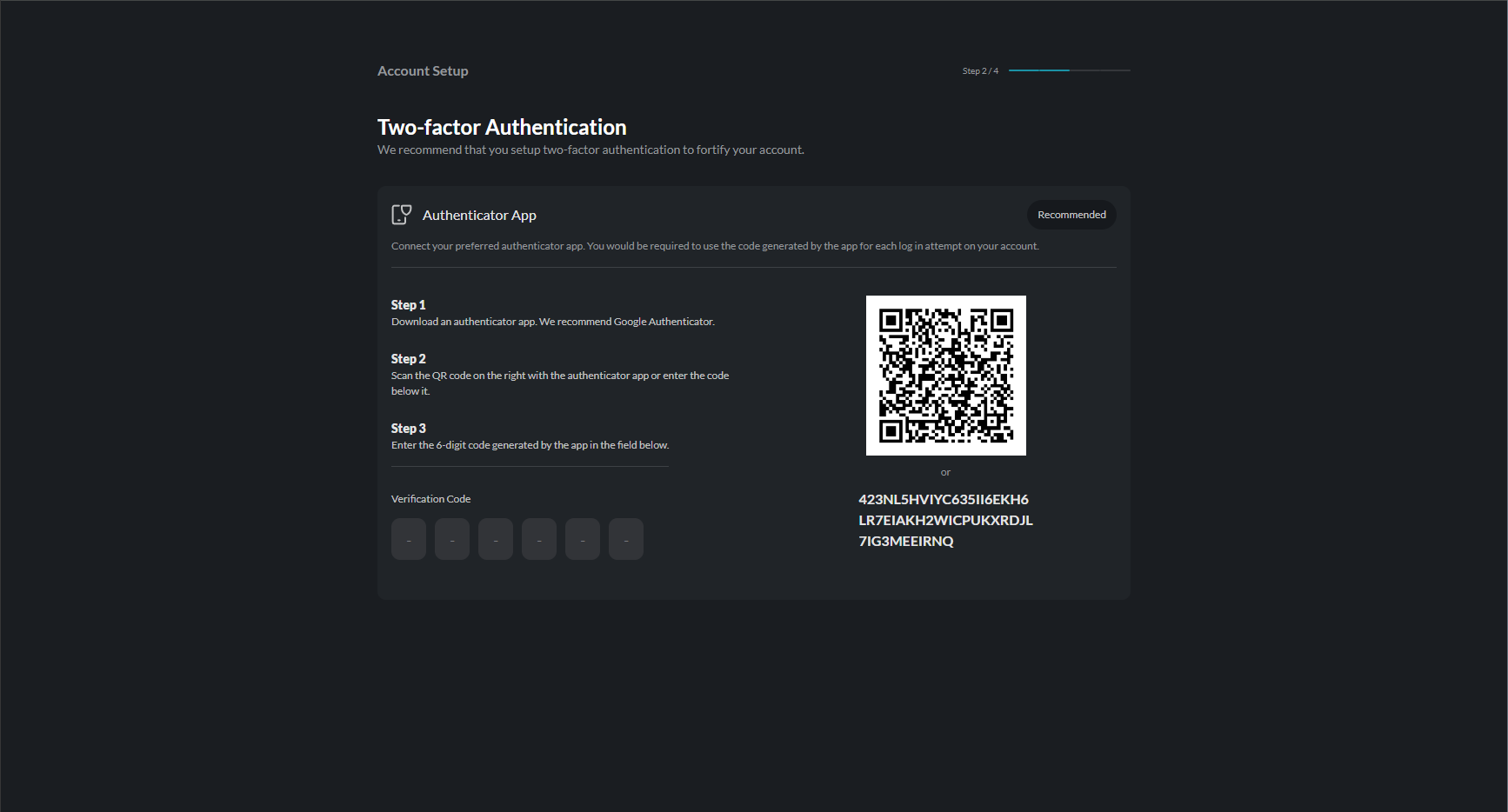
Step 1: Download an Authenticator App
If you don’t already have one, download an authenticator app from your device’s app store.
Step 2: Scan the QR Code
- Open your authenticator app
- Select Add Account or tap the + button
- Choose Scan QR Code
- Point your camera at the QR code on screen
Can’t scan the QR code?
Use the manual entry code displayed below the QR code. Enter this code in your authenticator app when adding a new account manually.
Step 3: Enter Verification Code
- Your authenticator app will display a 6-digit code
- Enter this code in the Verification Code field
- Click Verify to complete setup
Codes refresh every 30 seconds. If your code is about to expire, wait for a new one.
Setup Success
After successful verification, you’ll see a confirmation:
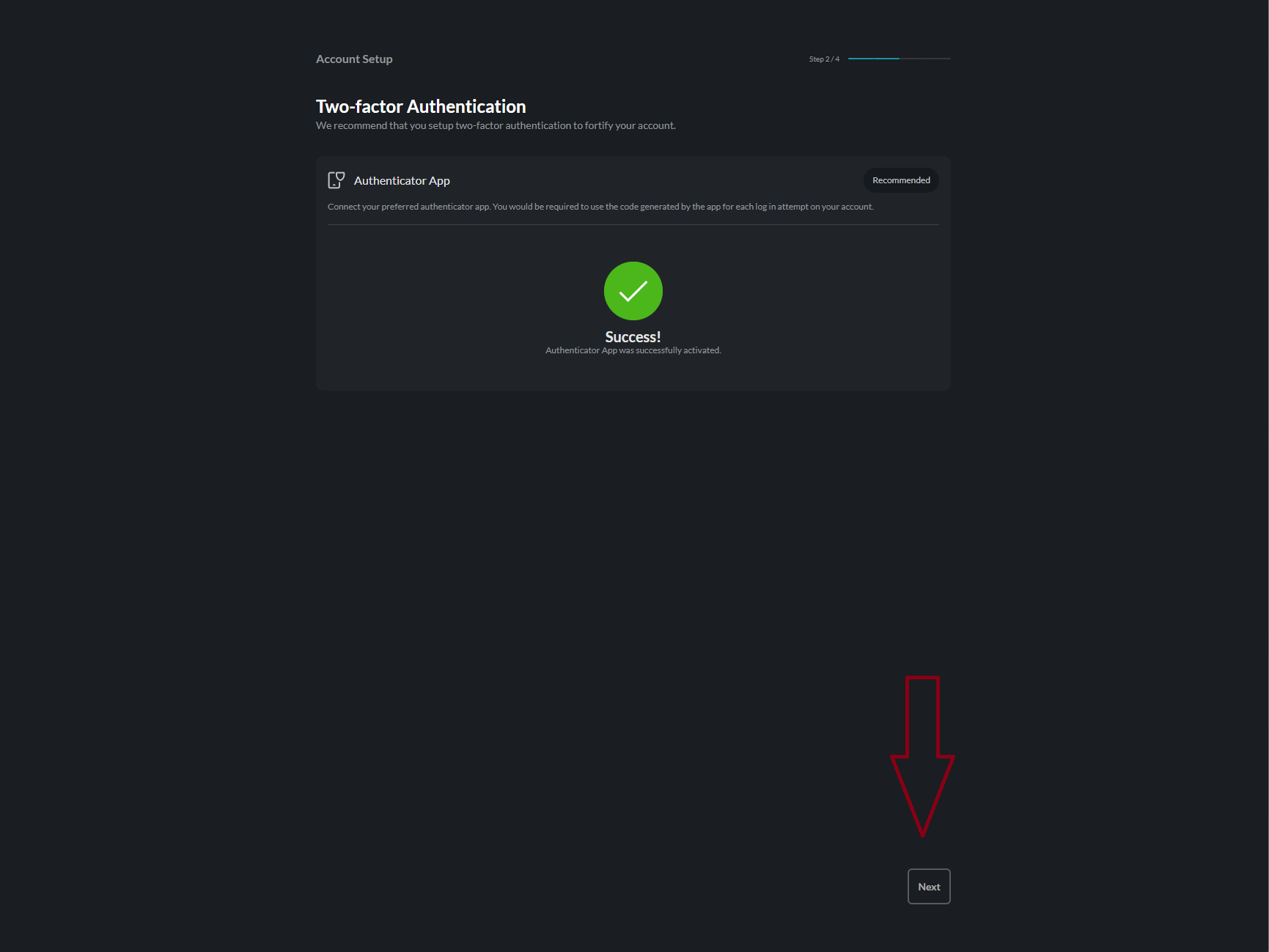
What happens next:
- Managers → Proceed to Device Management setup
- Regular Users → Proceed directly to Home dashboard
Using 2FA During Login
Once set up, you’ll need to enter a 2FA code each time you log in.
See Login for details on the verification process.
Troubleshooting
Code Not Working
| Issue | Solution |
|---|---|
| Code rejected | Ensure your device’s time is synchronized |
| Code expired | Wait for a new code to generate |
| Wrong account | Verify you’re using the correct authenticator entry |
Lost Access to Authenticator
If you’ve lost access to your authenticator device:
- Contact your organization administrator
- They can reset your 2FA settings
- You’ll need to set up 2FA again
Time Sync Issues
If codes are consistently rejected:
- Check your phone’s date/time settings
- Enable Automatic date & time
- Try generating a new code
We recommend adding your IDI Fly account to multiple authenticator apps or devices to prevent lockout.