Change Password
You can change your password from two locations: the login page (if you’ve forgotten it) or from the Settings page (if you’re already logged in).
Option 1: From Login Page (Forgot Password)
Use this method if you’ve forgotten your password and cannot log in.
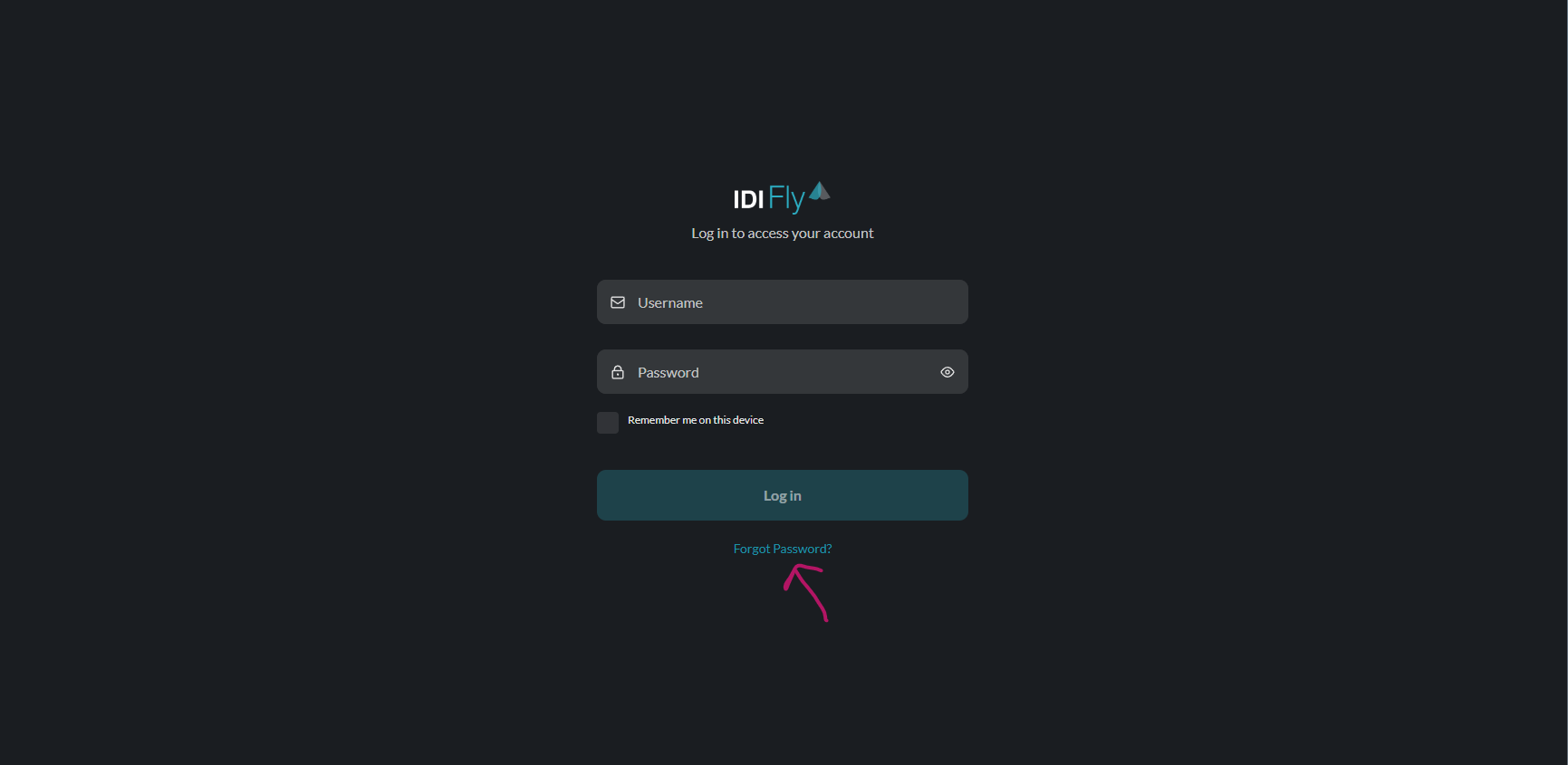
Step 1: Click Forgot Password
On the login page, click the Forgot Password? link:
Step 2: Enter Your Username
Enter your username to receive a verification code:

- Enter your Username (not your email)
- Click Send code
- A verification code will be sent to your registered email address
Step 3: Enter Code and New Password
After receiving the code, you’ll see this screen:
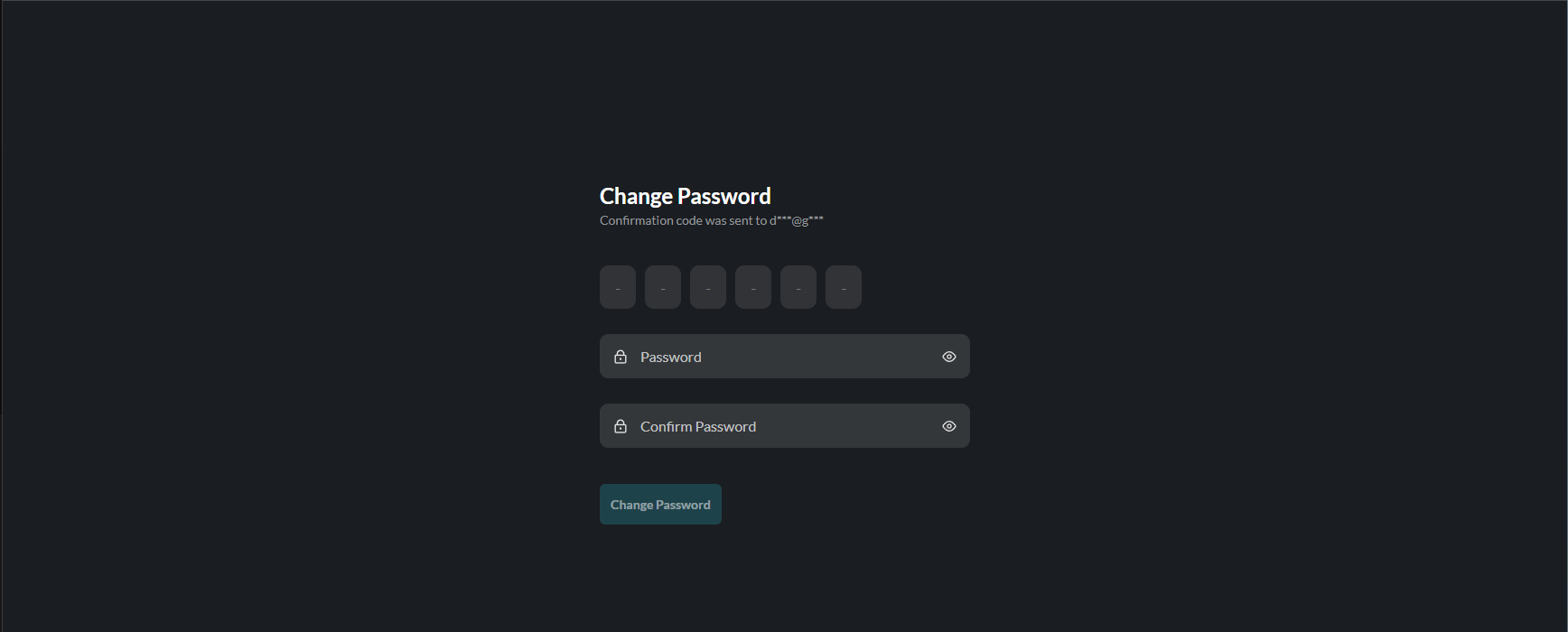
- Enter the 6-digit verification code from your email
- Enter your New Password
- Confirm your new password
- Click Change Password
The confirmation message shows a masked version of your email (e.g., d@g) where the code was sent.
Password Requirements
Your new password must meet all of these requirements:
| Requirement | Description |
|---|---|
| At least 8 characters | Minimum password length |
| Contains special characters | Include symbols like !@#$%^&* |
| Contains alphabets and numbers | Mix of letters and digits |
| Contains upper and lowercase | Both capital and small letters |
Option 2: From Settings Page
Use this method if you’re already logged in and want to change your password.
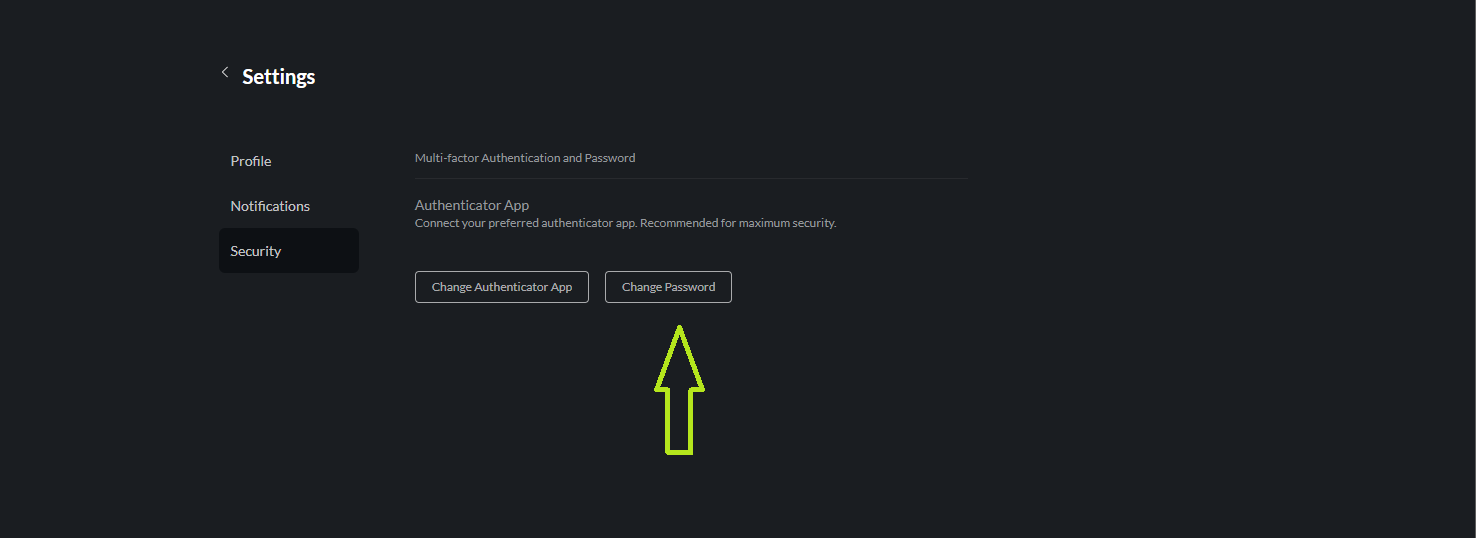
Step 1: Navigate to Settings
- Click the Settings icon in the top-right corner
- Select the Security tab
Step 2: Click Change Password
Click the Change Password button (next to the “Change Authenticator App” button).
Step 3: Enter Passwords
- Enter your Current Password
- Enter your New Password
- Confirm your new password
- Click Update Password
After Changing Password
- You will be logged out of all other sessions
- Use your new password for future logins
- Your 2FA settings remain unchanged
Troubleshooting
Verification Code Not Received
- Check your spam/junk folder
- Verify the email address associated with your account
- Wait a few minutes and try again
- Contact your administrator if the issue persists
Password Not Accepted
- Ensure all requirements are met (see table above)
- Check for leading/trailing spaces
- Passwords must match exactly
- Try a different password if the issue continues
Account Locked
If your account is locked due to too many failed attempts:
- Wait 15-30 minutes for automatic unlock
- Contact your administrator if urgently needed
Use a password manager to generate and store strong, unique passwords.